

Learn more about why it is better to send emails from a
subdomain than from your root
domain.
links.emails.example.com).
Enable tracking using the Dashboard
1
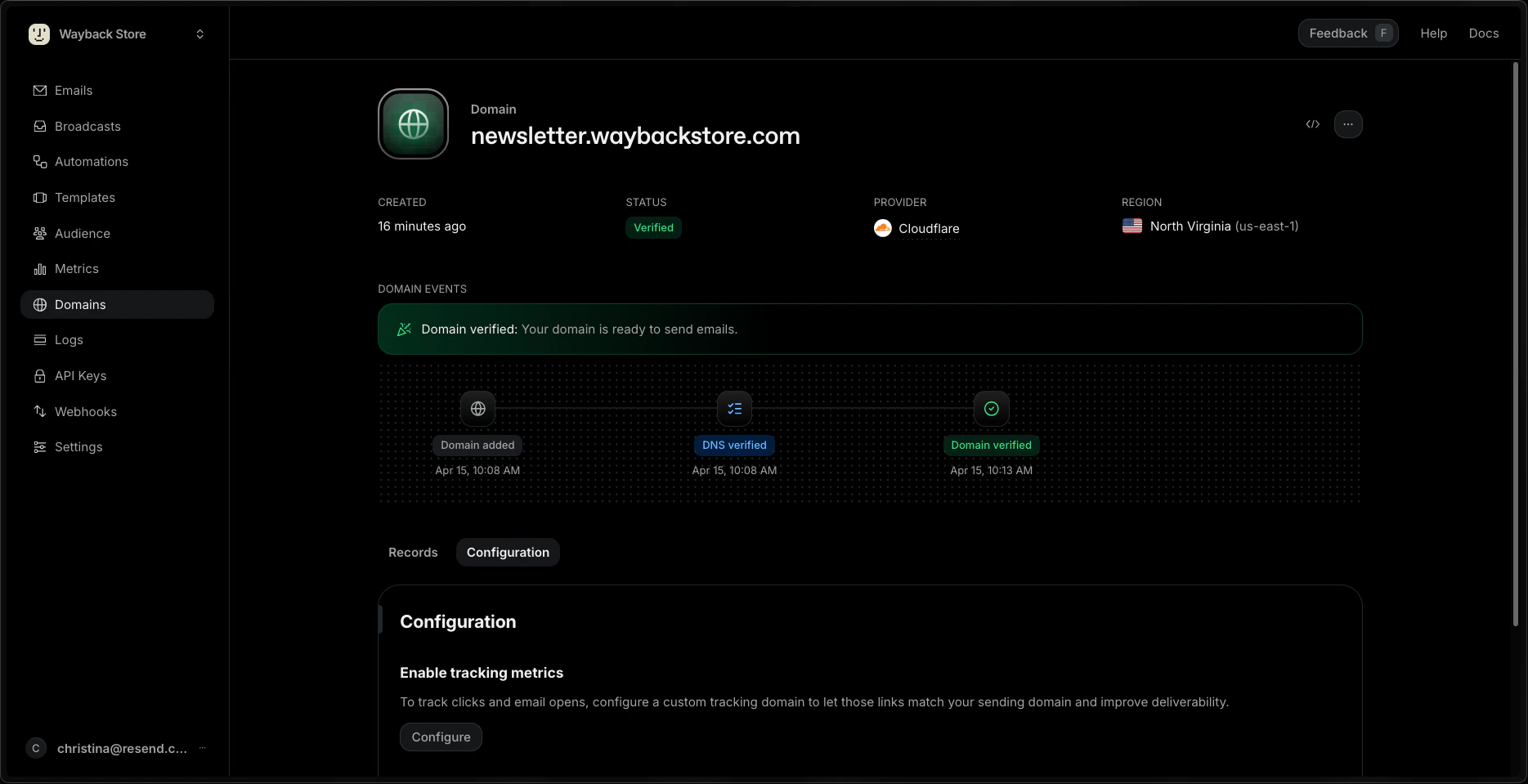
Go to the Domains Dashboard page and click on the domain you want to configure.
2
In the Configuration tab, click Configure under Enable tracking metrics.
3
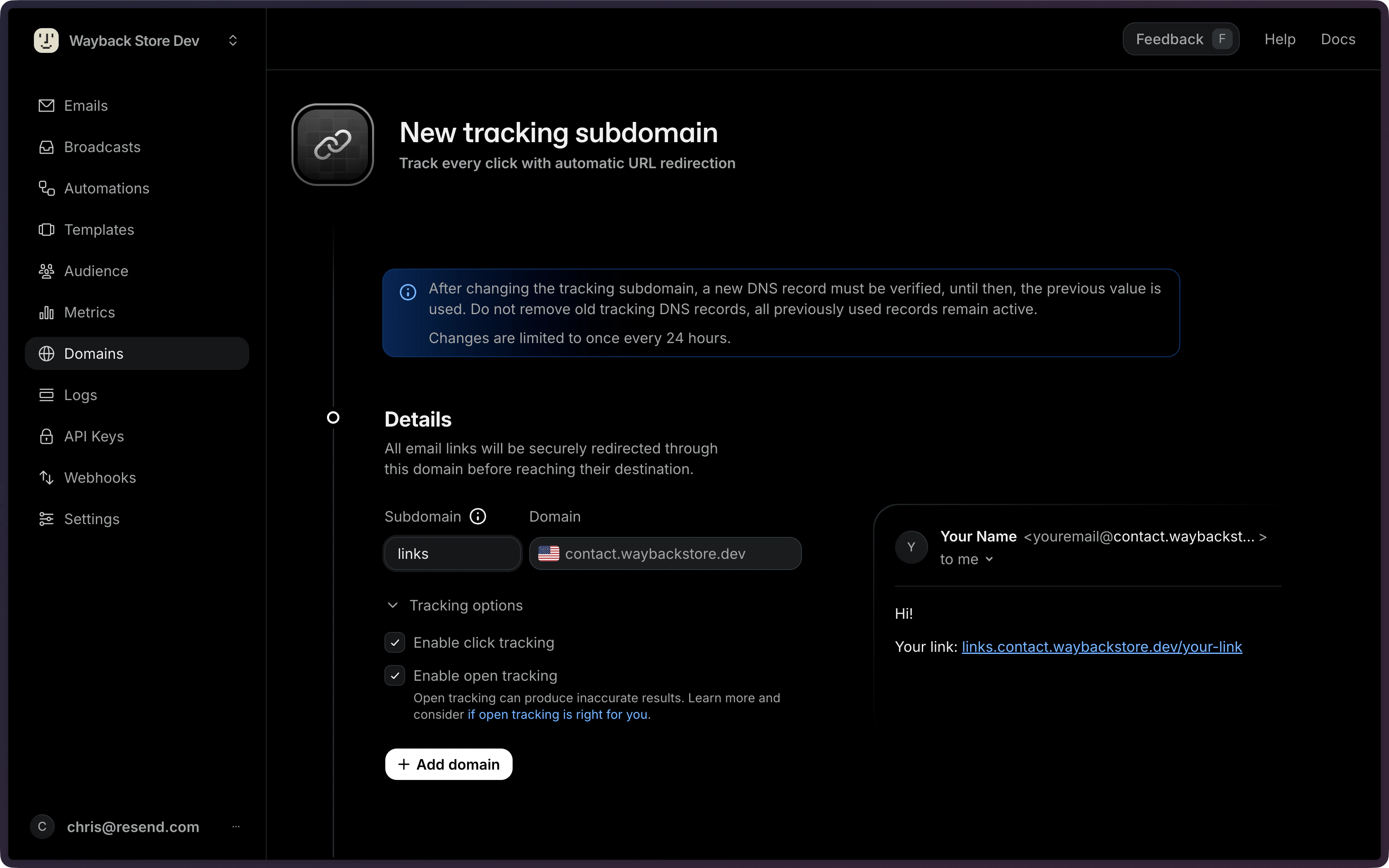
Provide a name for your tracking subdomain, enable open and/or click tracking, and click +Add domain.
4
Add the CNAME record to your DNS settings (e.g. Cloudflare, GoDaddy, etc.) to verify your tracking subdomain.
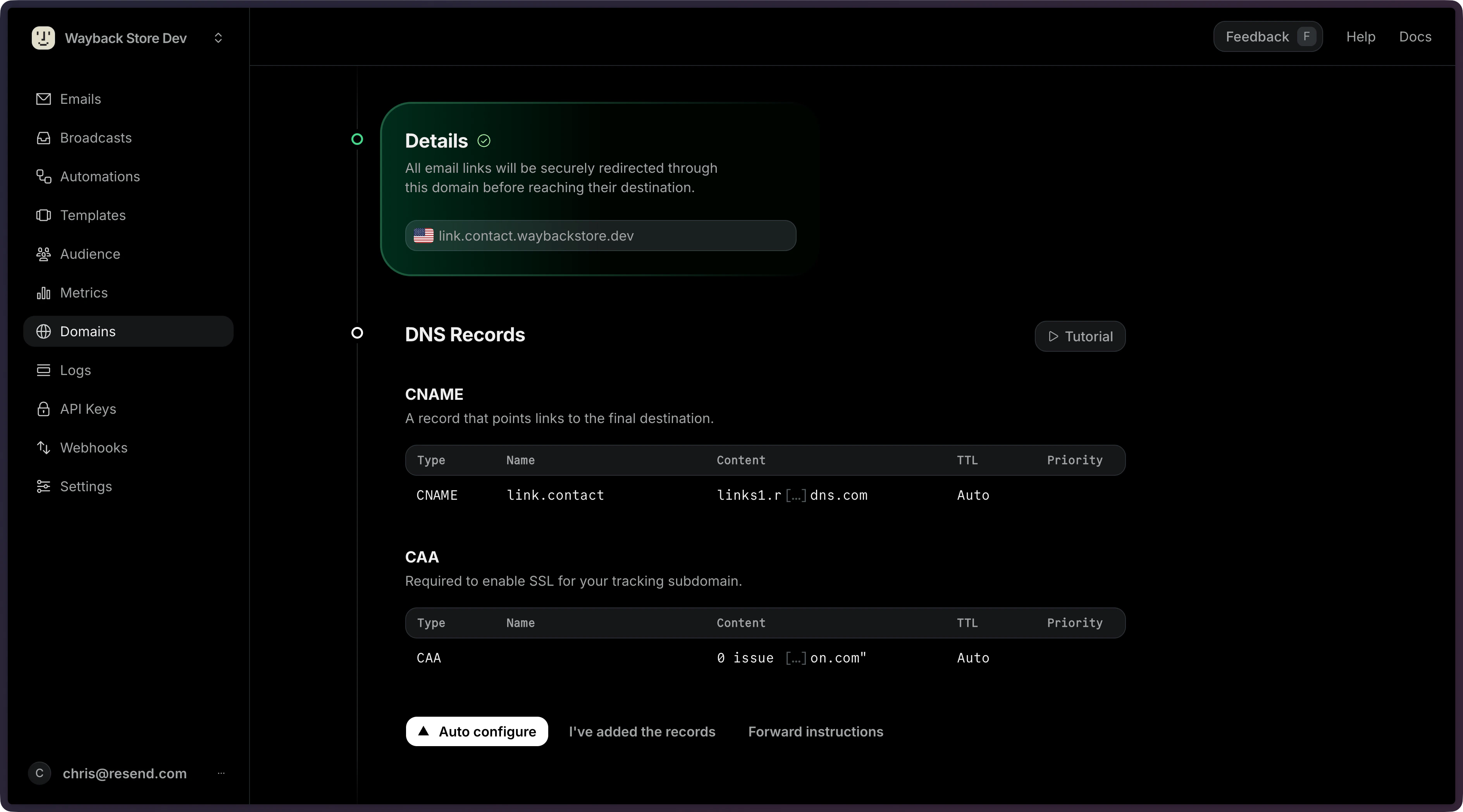
If we detect CAA records on your domain, we will show an additional CAA record
that needs to be created. This ensures that we can issue a TLS certificate for
your tracking subdomain.
5
Click I've added the records to verify the domain.
Enable tracking via the API
1
Provide the tracking subdomain
When adding a new domain to Resend, add tracking by passing the If you already have a verified domain, call the
tracking_subdomain field along with click_tracking and/or open_tracking.update endpoint to add a tracking subdomain and enable tracking.2
Add the CNAME record to your DNS settings (e.g. Cloudflare, GoDaddy, etc.) to verify your tracking subdomain.
If we detect CAA records on your domain, we will show an additional CAA record
that needs to be created. This ensures that we can issue a TLS certificate for
your tracking subdomain.
Tracking record.API Response Example
If we detect CAA records on your domain, we will show an additional CAA record
that needs to be created. This ensures that we can issue a TLS certificate for
your tracking subdomain.
3
Verify the domain
Once you’ve added the required DNS record(s), call the
verify endpoint to verify the domain.Tracking is active only when both of these conditions are met:
- The
open_trackingorclick_trackingsetting is enabled for the domain. - A tracking subdomain is configured (e.g.,
links.example.com) and successfully verified.
How Open Tracking Works
A 1x1 pixel transparent GIF image is inserted in each email and includes a unique reference to this image file. When the image is downloaded, Resend can tell exactly which message was opened and by whom.How Click Tracking Works
To track clicks, Resend modifies each link in the body of the HTML email to point to your tracking subdomain. When recipients clicks a link, the request is redirected to your tracking subdomain, their click event is recorded, and they are redirected to the original URL.Why open rates are not accurate
Open tracking is generally not accurate because each inbox handles incoming email differently. Clipped messages in Gmail happen when you send a message over 102KB. A message over this size won’t be counted as an open unless the recipient views the entire message. Resend’s Deliverability Insights on the email will note if a message exceeds this threshold. Some inboxes do not download images by default or block/cache assets with a corporate firewall. This approach can prevent the open event from being tracked. Other inboxes open the email prior to delivering to scan for malware or to protect user privacy. This approach can trigger an open event without the recipient reading your email. Emails sent with only a plain text version will not include open tracking at all. Since open tracking relies on a 1x1 pixel image, plain text emails cannot trigger open events. Only emails with an HTML version can be tracked for opens. Because of this, open tracking is not a statistically accurate way of detecting if your users are engaging with your content.How open tracking impacts inbox placement
Though open tracking does not impact whether your email is delivered, it most likely will impact your inbox placement. Trackers are generally used by marketers and even spammers. Because of this, inbox providers will often use open tracking as a signal that your email is promotional, or even spam, and categorize accordingly. We recommend disabling open rates for transactional email, to maximize inbox placement.Alternatives to open tracking
Instead of relying on open rates, there are a few other ways to still understand your sending.- Track Clicks: Monitoring the link clicks is an even more granular way to know how a recipient engaged with your email. By knowing if they clicked, you also know that they read parts of your email and took action.
- Track Outside the Inbox: Often emails are sent as a means to an end. Maybe it’s to increase page visits of an announcement or convert free users to paid. Tracking your sending by metrics outside of the inbox can be a great way to understand the true impact of your sending.
Troubleshooting
Multiple tracking CNAME records
When you change your tracking subdomain, you may see two CNAME records in the DNS Records table: one active and one inactive (shown dimmed). The inactive record is kept intentionally to avoid breaking links in emails that were already sent using the previous subdomain. You do not need to remove it.Changing the Tracking Subdomain
Because tracking subdomains are used in email links, they’re handled differently than other records.- Not removable: After your tracking subdomain has been created, it can only be changed, never removed. This behavior preserves any email links that may already be sent with the current tracking subdomain. For this reason, do not remove old tracking DNS records. (All previously used records remain active and are included in the response.)
- Requires verification: After changing the tracking subdomain, a new DNS record must be verified. Until then, the previous value is used.